
Manage · Purge
Purge View Setup
Find and remove unused view templates and view filters in one window.
When to use it
Use this after transferring templates, copying views between projects, or when filters have piled up from old graphic standards.
Why it exists
Unused templates and filters make the Assign View Template and Visibility/Graphics lists noisy, so people apply the wrong one.
How to use it
-
Open Purge View Setup
On the ✚ Annon App tab, open Purge and choose Purge View Setup.
-
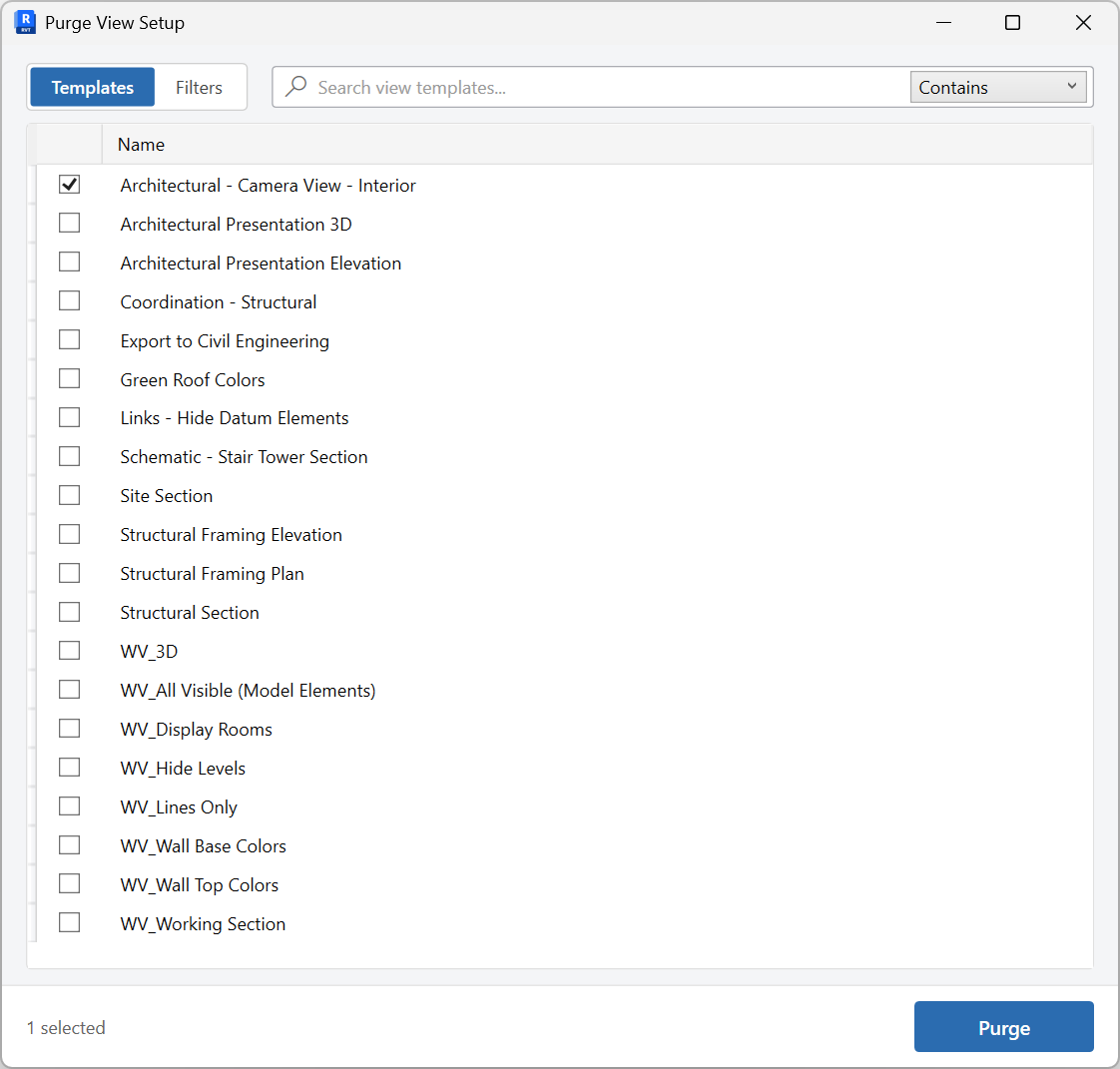
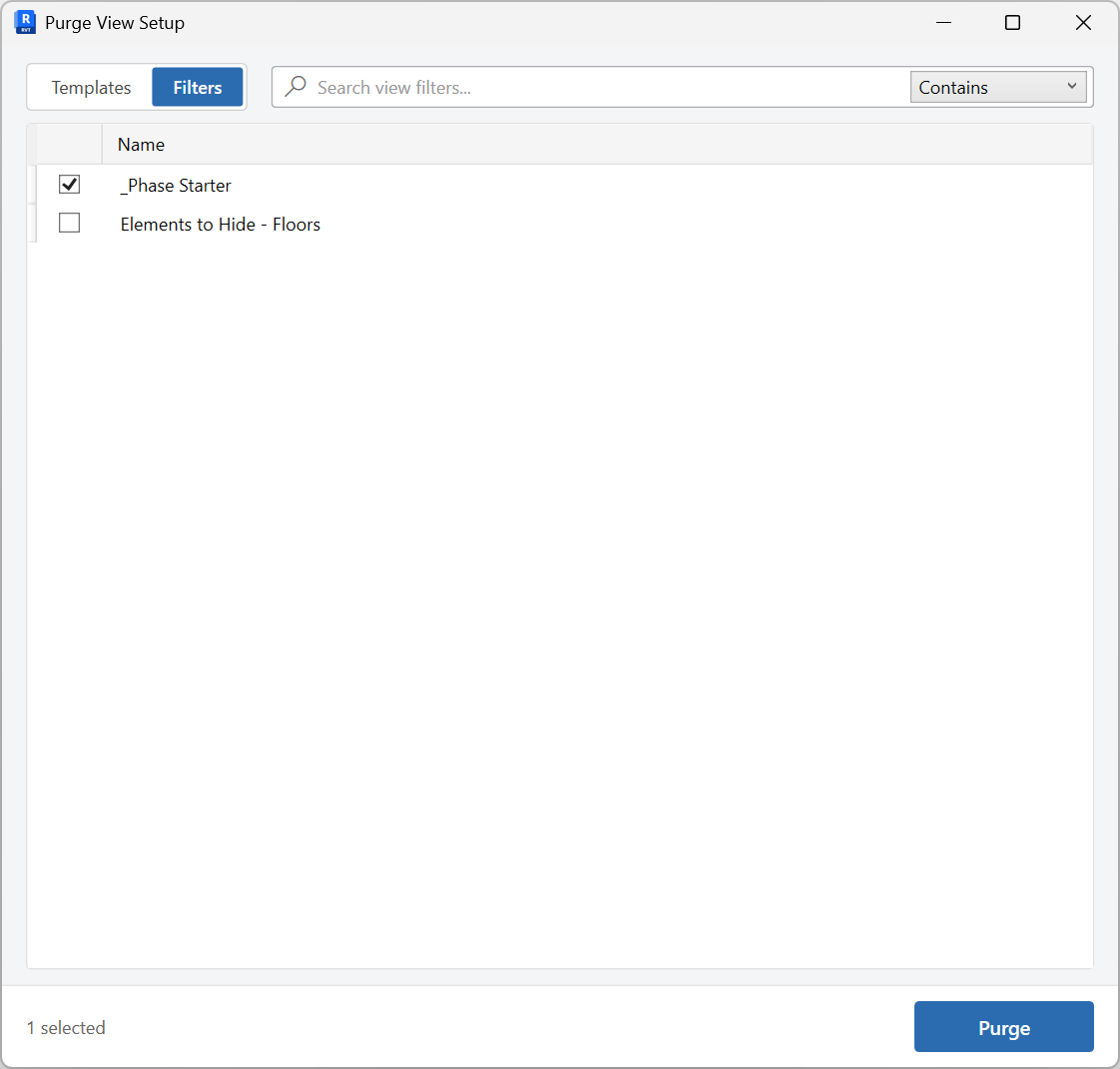
Choose Templates or Filters
Each tab refreshes when selected so you see current unused counts.
-
Search and check
Select only templates or filters that are not part of the office standard.
-
Purge
Remove the unused items, then assign the remaining templates with Assign View Templates if needed.
Keep in mind
- This consolidates the older Unused View Templates and Unused View Filters tools.
- A template that is still assigned to a view is not unused.


