
Manage · Purge
Purge DWG
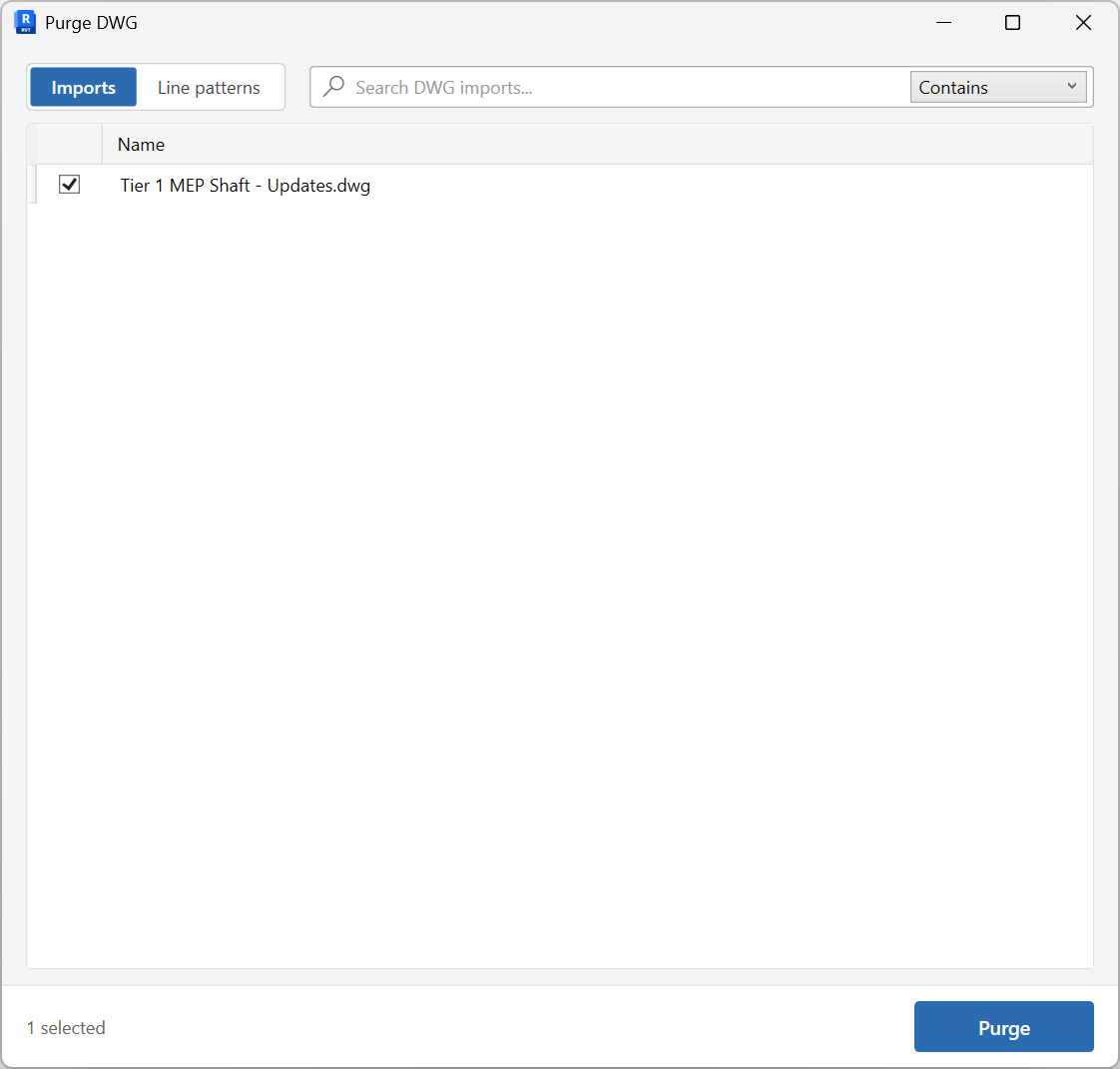
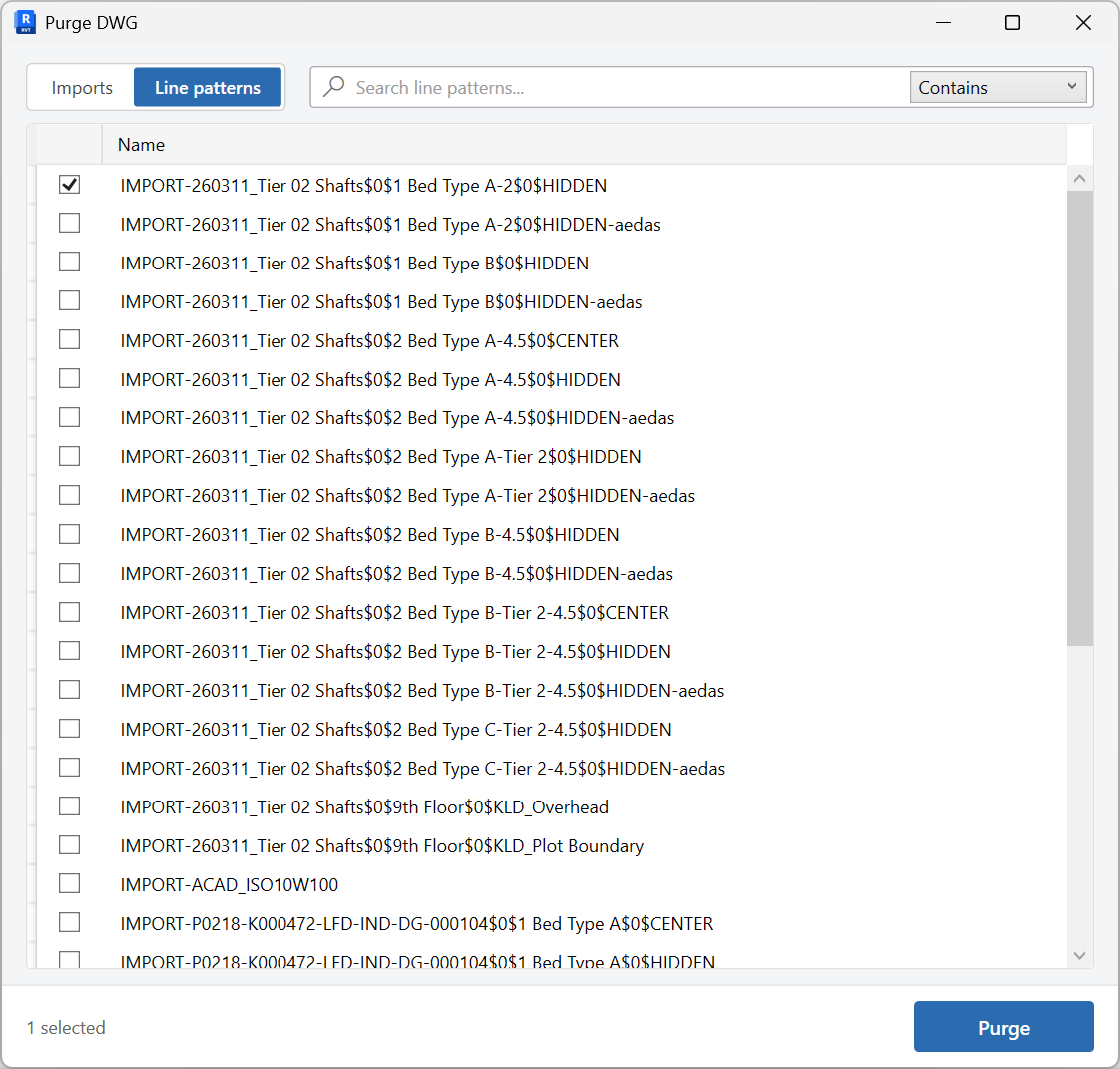
List and purge imported CAD drawings and IMPORT line patterns from one window.
When to use it
Use this when a model still contains exploded DWG imports or leftover IMPORT line patterns after a CAD-to-Revit conversion.
Why it exists
Imported CAD and IMPORT patterns are a common cause of file bloat, weird line styles, and views that print with leftover CAD graphics.
How to use it
-
Open Purge DWG
On the ✚ Annon App tab, open Purge and choose Purge DWG.
-
Imports or Line patterns
Switch tabs as needed. Each list refreshes when you select it.
-
Select what to remove
Check imported drawings or IMPORT line patterns that should not stay in the project.
-
Purge
Remove the selected items. Repeat on the other tab if both lists are dirty.
Keep in mind
- This consolidates the older DWG Imports and DWG Line Patterns tools.
- Linked CAD is assigned with Assign Worksets - this tool is for imports, not links.
Related tools
 Assign Worksets
Assign worksets to Revit links, CAD links, or levels and grids, with optional pinning and link renaming.
Assign Worksets
Assign worksets to Revit links, CAD links, or levels and grids, with optional pinning and link renaming.
 Unused Worksets
Find worksets with no elements and delete the ones you no longer need.
Unused Worksets
Find worksets with no elements and delete the ones you no longer need.
 Purge Sheets and Views
Review and purge project sheets and views from one window, with a tab for each list.
Purge Sheets and Views
Review and purge project sheets and views from one window, with a tab for each list.