
Manage
Schedule Data Update
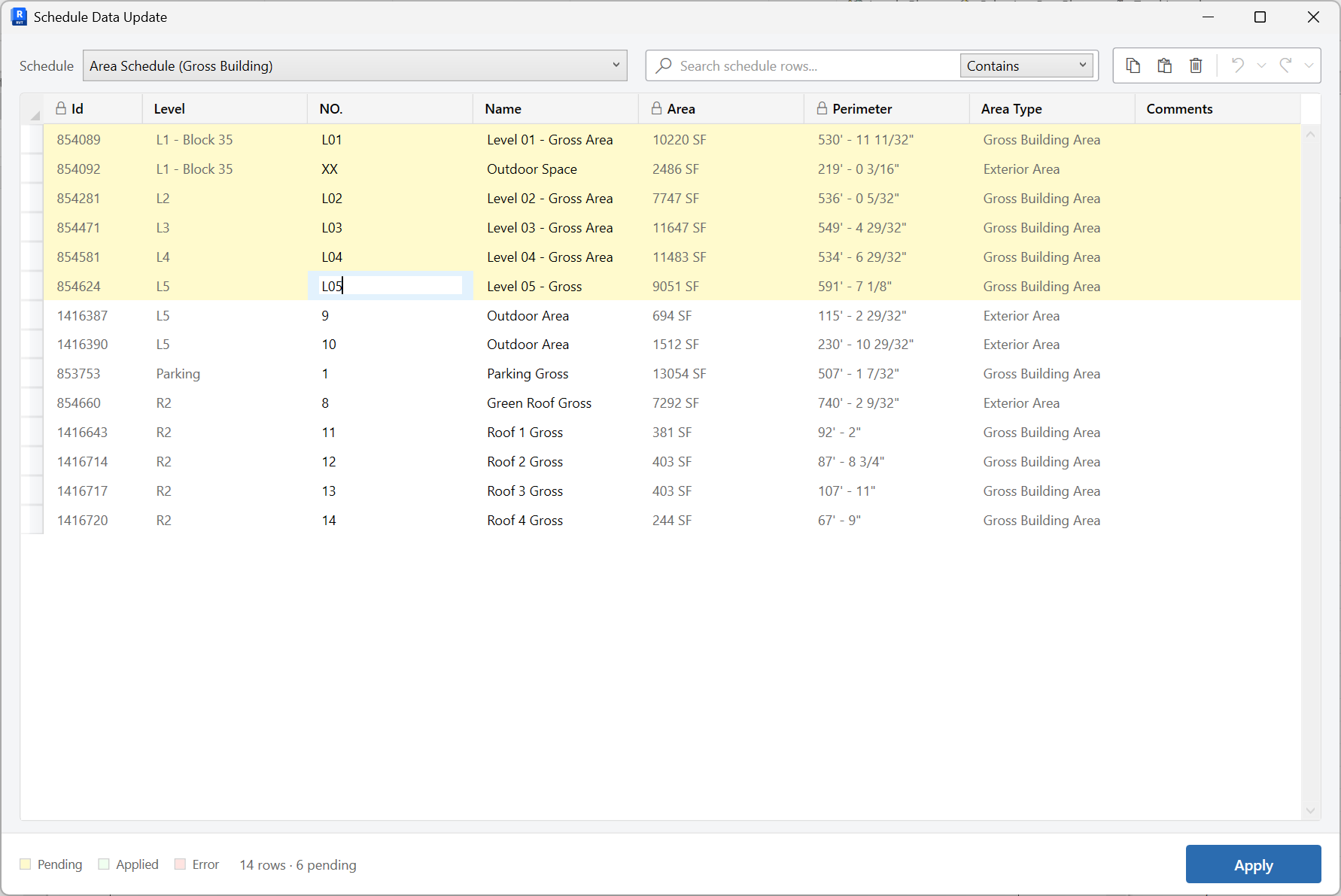
Open a Revit schedule in an editable grid, change values with copy, paste, and undo, then Apply them back to the model.
When to use it
Use this when you need to edit many scheduled values at once - room data, door numbers, sheet fields - faster than clicking row by row in a schedule view.
Why it exists
Revit schedules are awkward as a spreadsheet. This tool is the spreadsheet: search, edit, paste from Excel, then write back.
How to use it
-
Open Schedule Data Update
On the ✚ Annon App tab, click Schedule Data Update.
-
Pick a schedule
Choose the schedule to load into the grid.
-
Edit values
Search, change cells, and use copy, paste, and undo. Group headers are color-coded so you do not edit them as element rows.
-
Apply
Write the edited values back to the model. Review any rows that failed to write.
Keep in mind
- This updates element parameters through the schedule’s fields - it does not redesign the schedule.
- For sheet number and name in bulk, Revalue Sheets is often the more direct tool.
Related tools
 Shared Parameters
Create shared parameters in the shared parameter file, bind them into the project, and transfer them between open projects.
Shared Parameters
Create shared parameters in the shared parameter file, bind them into the project, and transfer them between open projects.
 Revalue Sheets
Batch update sheet numbers, names, and other sheet parameters from an editable grid.
Revalue Sheets
Batch update sheet numbers, names, and other sheet parameters from an editable grid.
 Parameter Values
Browse elements by parameter value in this view or the entire project, then select, isolate, color, or edit those values.
Parameter Values
Browse elements by parameter value in this view or the entire project, then select, isolate, color, or edit those values.