
Manage · Family and Type
Rename Families And Types
Batch rename families and types from a searchable grid, with optional rename rules.
When to use it
Use this when enforcing a naming standard, after loading a library, or when types arrived with consultant prefixes you do not want.
Why it exists
Inconsistent family and type names break schedules, tags, and filters. Fixing them one Properties palette at a time does not scale.
How to use it
-
Open the tool
On the ✚ Annon App tab, click Rename Families And Types.
-
Filter by category
Narrow the grid to the categories you are renaming so you do not touch unrelated families.
-
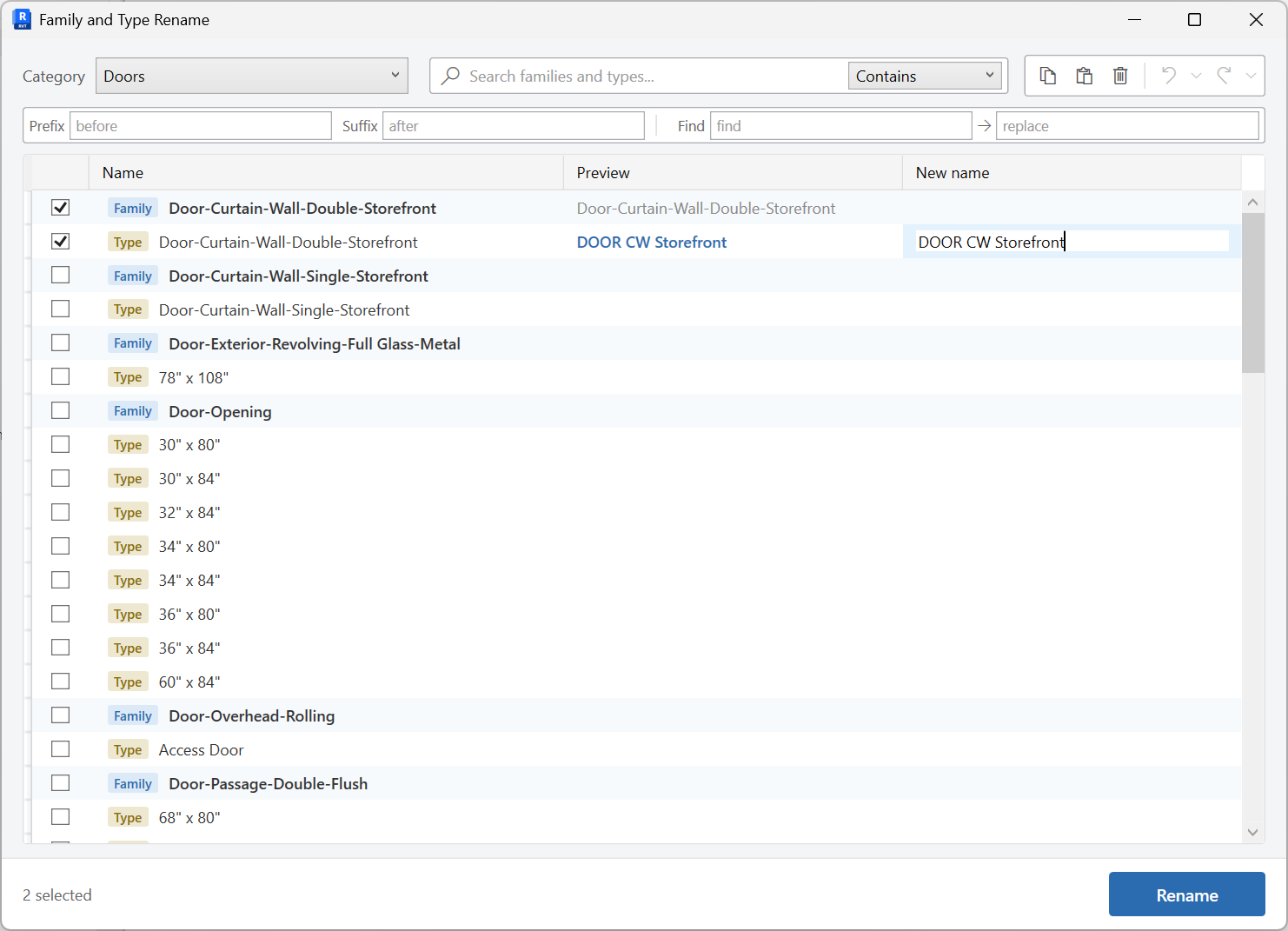
Edit names
Type new names in the grid, or use the batch rename rules bar to apply find/replace across selected rows. Family and type rows are color-badged so you can tell them apart.
-
Apply
Commit the rename. Review any rows the tool flags before you leave the window.
Keep in mind
- System families cannot always be renamed the same way as loadable families - watch the badges in the grid.
- Rename views separately with Rename Views if view names should follow the same standard.
Related tools
 Rename View Templates
Rename view templates or view family types from a searchable grid.
Rename View Templates
Rename view templates or view family types from a searchable grid.
 Rename Views
Batch rename views in an editable grid, with optional parameter columns for reference.
Rename Views
Batch rename views in an editable grid, with optional parameter columns for reference.
 Shared Parameters
Create shared parameters in the shared parameter file, bind them into the project, and transfer them between open projects.
Shared Parameters
Create shared parameters in the shared parameter file, bind them into the project, and transfer them between open projects.